
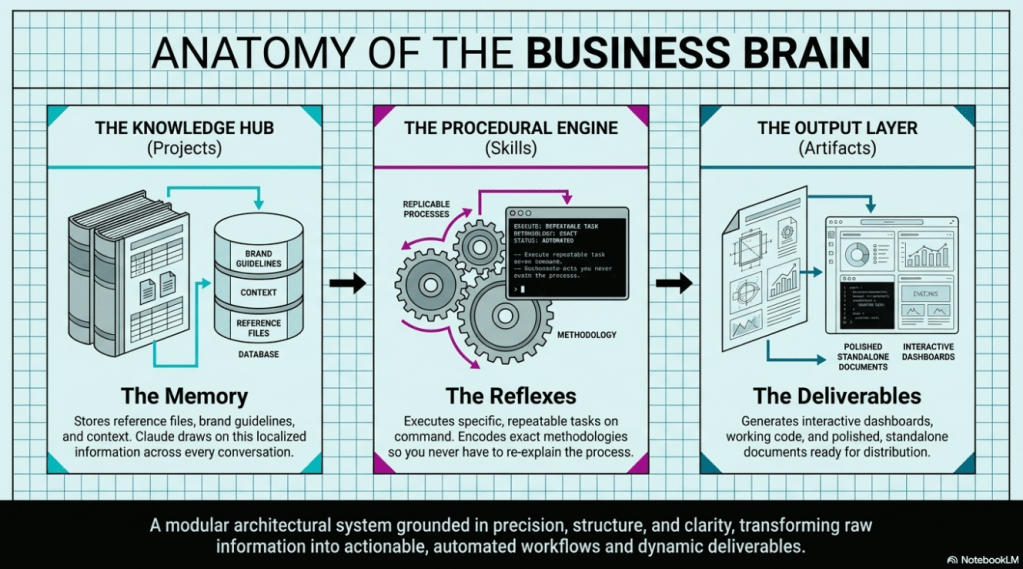
A Claude Project is a permanent knowledge hub that gives Claude everything it needs to know about your business — so you stop starting from scratch every single time you open it.
Most entrepreneurs use Claude (or ChatGPT, or any AI tool) the same way: they open a blank chat, type a prompt, get something decent, and close the tab. Then they do it again tomorrow. And the day after that. It works, sort of. But it’s exhausting. And the output never quite sounds like you because Claude has no idea who you are.
That’s where Claude Projects and Skills come in. Together, they turn Claude from a one-off assistant into something that actually knows your business — your voice, your offers, your ideal client — and produces output that reflects all of it. In this guide, I’m going to walk you through exactly how to set it up, step by step.
Who This Guide Is For
- Entrepreneurs who use Claude or ChatGPT but feel like they’re always starting over
- Coaches and consultants who want AI to sound like them, not a generic bot
- Online business owners who are drowning in content tasks and need a smarter system
- Women entrepreneurs who are AI-curious but feel overwhelmed by where to begin
- Anyone who has ever saved a prompt, forgotten where they put it, and rebuilt it from scratch
- Creatives and service providers who know AI could save them time but haven’t cracked the workflow yet
- Business owners who are tired of “learning AI” and ready to actually use it
If you’ve ever typed the same context into Claude three times in one week because it keeps forgetting who you are, this guide is for you.
Key Takeaways
- A Claude Project stores your business context permanently so Claude never starts from scratch
- Skills are reusable task instructions you install once and call on whenever you need them
- Together, Projects and Skills create a system that produces on-brand output without constant prompting
- You can upload your brand voice doc, ideal client avatar, and offer details directly into your Project
- Skills are not tied to one Project — they float freely and work anywhere in Claude
- Setting up your first Project takes less than 30 minutes with the right documents ready
- The shift from “prompting Claude” to “running a skill” is where the real time savings happen
- This system is the foundation — once it’s built, you can layer on automation and recurring workflows
Table of Contents
- What Is a Claude Project?
- What Are Claude Skills?
- Why This Changes Everything
- Step 1 — Create Your Project
- Step 2 — Feed the Brain
- Step 3 — Install Your First Two Skills
- Step 4 — Install Your Last Two Skills and Run Them
- Step 5 — Test It on Real Content
- What Comes After the Foundation
- Common Mistakes to Avoid
- Frequently Asked Questions
- Final Thoughts
What Is a Claude Project?
A Claude Project is a dedicated workspace inside Claude that holds permanent context about your business.
Think about what happens in a normal Claude conversation. You explain who you are, describe your audience, paste in your brand voice, maybe share a few details about your offer. Claude works with that information — but the moment you close the tab, it’s gone. Next conversation, you start over. It’s like hiring a brilliant assistant who has amnesia every morning.
A Project changes that. Inside a Project, you upload documents about your business — your brand voice guide, your ideal client avatar, your offer descriptions, your tone guidelines — and Claude keeps that context loaded and ready. Every conversation you have inside that Project starts from a place of full context. Claude already knows who you are.
Projects live in the left sidebar in Claude. You can create multiple Projects — one for your main business, one for a specific client, one for a product launch — and they each hold their own separate knowledge base.
What Are Claude Skills?
Skills are reusable task instructions that tell Claude exactly what to do and how to do it.
If a Project is the knowledge hub — the brain — then Skills are the specific capabilities that brain can perform. A Skill might tell Claude to always write a landing page using a specific interview process and conversion framework. Another might tell it to produce a three-part email sequence in a particular format every time. Another might create a full social media content bundle with video scripts, post copy, and image prompts.
Here’s what makes Skills powerful: they’re not locked inside one Project. You install a Skill once, and it’s available anywhere you open Claude. You can use your Landing Page Builder Skill inside your business Project, inside a client Project, or even in a standalone conversation. The Skill travels with you.
To install a Skill, go to the Customize icon in Claude (it looks like a small suitcase), click Skills, then click the plus sign and choose Create Skill. You paste in the skill instructions, give it a name, and click Create. That’s it.
Why This Changes Everything
I want to be honest about something. When I first started using Claude, I thought I was using it well. I was getting decent output. But I was also spending 10–15 minutes at the start of every session re-explaining my business, repasting my brand voice, re-describing my audience. It felt productive because I was “using AI.” But I was actually just doing a slower version of the work I was trying to avoid.
The shift happened when I started loading my business documents into a Project and building Skills for the tasks I did on repeat. The first time I typed “let’s build the landing page” and Claude already knew my offers, my audience’s pain points, my voice, and my conversion framework — without me pasting in anything — I felt it. That’s what efficiency actually feels like.
The output was different too. Not just faster. More accurate. More on-brand. Less editing.
Step 1 — Create Your Project
This is the easiest step and it takes about two minutes.
Open Claude and look for the word “Projects” in the left sidebar. Click it. Then click “New Project” and give it your business name. That’s your foundation.
You now have a dedicated workspace that’s separate from your regular Claude conversations. Everything you upload here stays here. Every conversation you have inside this Project starts with your business context already loaded.
If you run multiple businesses or serve multiple audiences, create a separate Project for each one. The knowledge bases stay cleanly separated and Claude won’t bleed context from one into the other.
Step 2 — Feed the Brain
Your Project is only as smart as what you put into it.
This is the step most people skip — and it’s the reason their AI output still sounds generic. If Claude doesn’t know your voice, your audience, or your offers, it’s working with nothing. It’ll produce competent content that could belong to anyone. That’s not what we’re building here.
The documents that make the biggest difference are:
- Brand voice guide — your tone, your writing style, phrases you use, words you avoid
- Ideal client avatar — who you serve, their pain points, their goals, the language they use
- Offer descriptions — what you sell, how it’s positioned, what transformation it delivers
- Messaging guide — your core beliefs, your differentiators, your origin story if relevant
To export any Google Doc as a file Claude can read, go to File, then Download, then Markdown (.md). Upload those files directly into your Project by clicking the Files section inside your Project settings.
Start with at least two files. Your brand voice doc and one offer description will get you most of the way there. You can always add more as you go.
Step 3 — Add Your First Skills
Now that your Project has context, it’s time to give Claude capabilities by adding Skills.
I recommend starting with four core Skills:
- Landing Page Builder
- Lead Magnet Builder
- Email Launch Series
- Social Media Assets
These cover the most common things entrepreneurs need when promoting an offer.
You have two options for adding these Skills:
Option 1: Have Claude Create Them
You can ask Claude to create the Skills for you by following the prompts provided in the free instructions.
Option 2: Upload From a Trusted Source
If you’d prefer, you can download these pre-built Skills from the free instructions and upload them directly into your Project.
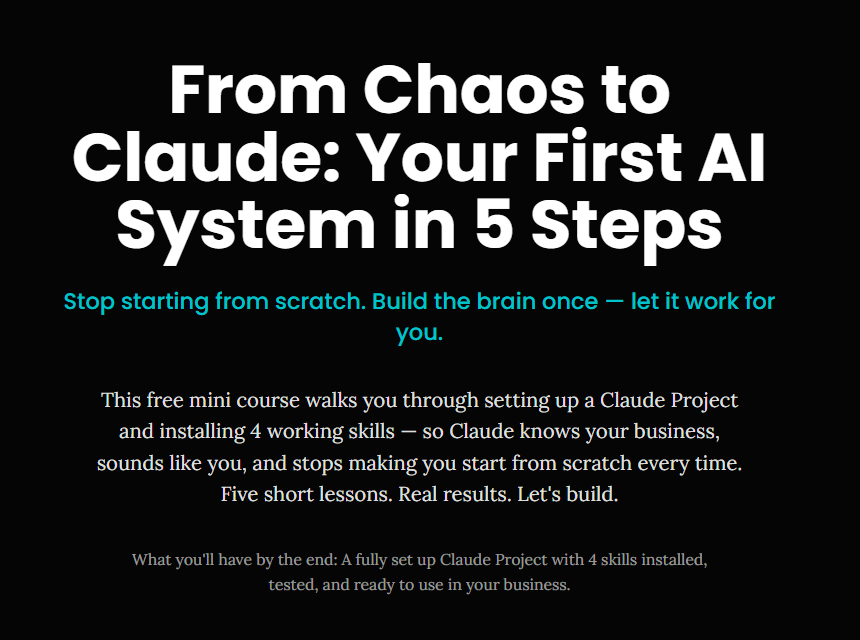
If you want the FREE Mini-Course where I outline all of these steps, click here:
https://chaos-to-claude.base44.app
To install a Skill:
- Click the Customize icon in Claude (the small suitcase icon)
- Click Skills
- Click the + and choose Create Skill (or upload if using downloaded files)
- Paste or upload the Skill
- Give it a name (ex: Landing Page Builder)
- Click Create
Once your Skills are installed, you’re ready to use them.
Once you’ve installed all four Skills, go into your Project and run one. Don’t overthink the prompt. Just type something like “help me create a freebie for my offer” or “let’s build the landing page for my coaching program.” Claude will read your Project files, apply the Skill framework, and produce output that actually fits your business.
The first time you run a Skill inside a loaded Project, the difference is noticeable. Claude doesn’t ask you to explain your audience. It doesn’t produce generic copy. It pulls from what you’ve already uploaded and runs the Skill on top of it.
Step 4 — Test It on Real Content
The final step isn’t about installing anything. It’s about proving the system to yourself.
Take a real piece of content from your business — a past email, a workshop description, a social post that performed well — and run a Skill on it inside your Project. Ask Claude to repurpose it, expand it, turn it into something new.
Pay attention to how different this feels compared to a blank-slate Claude conversation. The voice is closer. The references are accurate. The output needs less editing. That’s the system working.
This step also helps you spot gaps. If Claude produces something that’s slightly off, it usually means there’s a document missing from your Project. Maybe it doesn’t know your offers well enough yet, or your ideal client description needs more detail. Those gaps are easy to fix — just upload another file and try again.
What Comes After the Foundation
Projects and Skills are the foundation. They’re not the ceiling.
Once you have this base in place, the next layer is what I call the Co-work System. This is where your Projects and Skills connect to recurring workflows — so Claude drafts your weekly newsletter, repurposes your podcast transcript into a full content bundle, and preps your launch assets on a regular schedule. You stop going into Claude with a task and start having Claude show up with the work already done.
The Co-work System is what separates entrepreneurs who use AI occasionally from entrepreneurs whose backend actually runs on AI. It’s the difference between a tool you reach for and a system that supports you.
Common Mistakes to Avoid
Uploading one file and calling it done. The more context you give Claude, the better it performs. One brand voice doc is a start. Adding your offers, your ideal client, and your messaging guide is what makes the output feel truly on-brand.
Using Skills outside a Project and wondering why the output is generic. Skills work anywhere in Claude, but they produce their best output when combined with a loaded Project. The Project is the context. The Skill is the framework. You need both.
Rebuilding your Project every few months. Your documents will evolve as your business does. When your offer changes, update the file and re-upload it. This takes five minutes and keeps your system accurate.
Treating this like a course to finish. This isn’t something you complete and move on from. It’s a system you build and maintain. The more you use it, the more you’ll find opportunities to refine it.
Frequently Asked Questions
Do I need a paid Claude plan to use Projects?
Yes, Projects are available on Claude’s Pro plan. If you’re using Claude regularly for your business, the Pro plan pays for itself quickly in time saved.
How many documents can I upload to a Project?
Claude Projects can hold a significant amount of content — far more than a custom GPT. You can load it with your full brand library and barely scratch the surface of its capacity.
Can I use the same Skills in multiple Projects?
Yes. Skills are not tied to a specific Project. Once you install a Skill, it’s available everywhere you use Claude — in any Project or in standalone conversations.
What file types can I upload to a Project?
Claude accepts Markdown (.md) files, text files, PDFs, and several other document formats. Markdown is often the easiest because you can export directly from Google Docs.
What if Claude still doesn’t sound like me after I upload my brand voice doc?
Check that your brand voice document is specific enough. Generic instructions like “be warm and professional” won’t produce distinctive output. Include actual examples of your writing, phrases you use, and phrases you actively avoid.
How long does it take to set up a Project?
With your documents ready, you can have a Project set up and your first Skill installed in under 30 minutes. The prep work — gathering and organizing your business documents — is what takes the most time.
Can I create Projects for specific clients or launches?
Absolutely. Many entrepreneurs have a main business Project and then create separate Projects for individual clients, specific offers, or time-limited campaigns. Each Project holds only the relevant context.
What’s the difference between a Skill and a regular prompt?
A prompt is a one-off request. A Skill is a programmed set of instructions that Claude follows every time it’s triggered. Skills are consistent, repeatable, and don’t require you to re-explain the format or process each time.
Will Claude ever “forget” what’s in my Project?
No. Unlike conversation-based memory, Project files are permanently stored and available in every conversation you have inside that Project. You can also turn on memory features in Claude settings to add another layer of continuity.
What should I do if a Skill produces output I don’t love?
You can edit any Skill after you create it. Go back to Customize, find the Skill, click Edit with Claude, and describe what you’d like to change. Claude will rewrite the Skill instructions and you save the updated version.
Final Thoughts
Projects and Skills are the foundation. They’re not the finish line.
Once you’ve created your Skills, you can take things one step further by adding connectors and setting up Claude Cowork to run those Skills for you automatically.
This is where Claude shifts from being a tool you use… to an assistant that actually works alongside you.
For example, you can:
- Have Claude run your newsletter Skill every Monday morning
- Turn your podcast transcript into content automatically
- Generate weekly social media posts on a schedule
- Prepare launch assets ahead of time
Instead of opening Claude and asking it to do something, Claude runs your Skills at the right time and delivers the work to you.
It’s the difference between using AI manually and having AI support your business behind the scenes.
Want to know how you can use tools like this in your business?
Inside our amazing community, we focus on how we are using AI to create content, automate tasks, and simplify marketing workflows.
If you’d like to explore this alongside other entrepreneurs, I would LOVE to have you join us! https://www.skool.com/ai-amplified-entrepreneur
I also host a FREE Facebook community for entrepreneurs, small business owners, and creatives who want to leverage AI to streamline their work, save time, and boost profits, all without the burnout! https://www.facebook.com/groups/aibusinessboost

 AI Coaching with Angelina
Leave a comment